

Overview
The Protect platform, accessible at https://protect.oosto.com, allows users to log in using their preferred authentication method. This guide covers the available login options and step-by-step instructions for each.
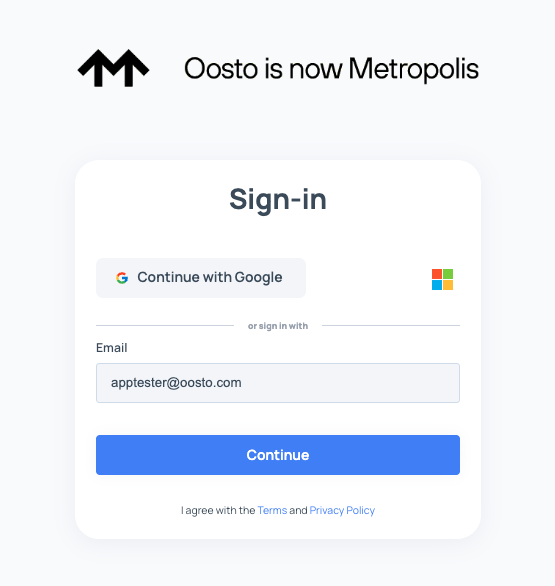
Available Login Methods
The platform supports the following login methods:
Sign in with Google: Use your Google account credentials to access the platform.
Sign in with Microsoft: Use your Microsoft account (e.g., Office 365 or Azure AD credentials) to log in.
Standard Email and Password: Use your registered email address and password to sign in.
Single Sign-On (SSO):
Supports SAML service providers and OpenID Connect identity providers (e.g., Okta, Azure AD).
Contact your Protect account manager for this enterprise plan option
Logging In
Follow these steps to log in to Protect platform:
Sign in with Google
Navigate to https://protect.oosto.com.
Click Continue with Google or Sign in with Google.
Select an existing Google account or sign in with a new Google account by entering your email and password.
Follow any additional prompts to authenticate.
Upon successful authentication, you will be directed to the platform dashboard.
Sign in with Microsoft
Navigate to https://protect.oosto.com.
Click Sign in with Microsoft.
Enter your Microsoft account credentials (e.g., Office 365 or Azure AD email and password).
Follow any additional prompts to authenticate.
Upon successful authentication, you will be directed to the platform dashboard.
Sign in with Standard Email and Password
Navigate to https://protect.oosto.com.
Select the Email and Password option (or similar).
Enter your registered email address, click continue and enter your password in the provided fields.
Click Sign In.
Upon successful authentication, you will be directed to the platform dashboard.
Sign in with Single Sign-On (SSO)
Navigate to https://protect.oosto.com.
Click any method or enter your email (if configured for your organization).
You will be redirected to your organization’s SAML or OpenID Connect identity provider (e.g., Okta, Azure AD).
Authenticate using your organization’s credentials.
Upon successful authentication, you will be redirected to the platform dashboard.
Best Practices
Secure Credentials: Never share your login credentials with others. Use strong passwords for standard email and password login.
Verify SSO Setup: If using SSO, confirm with your administrator that your account is properly configured with the identity provider.
Contact Your Administrator: If you experience login issues.