

Notifications Center
Overview
The Notification Center gives you total command over how and where you receive security alerts. By default, you receive all alerts, but you can granularly filter your preferences to focus only on what matters most to your role.
Configuring Your Notifications
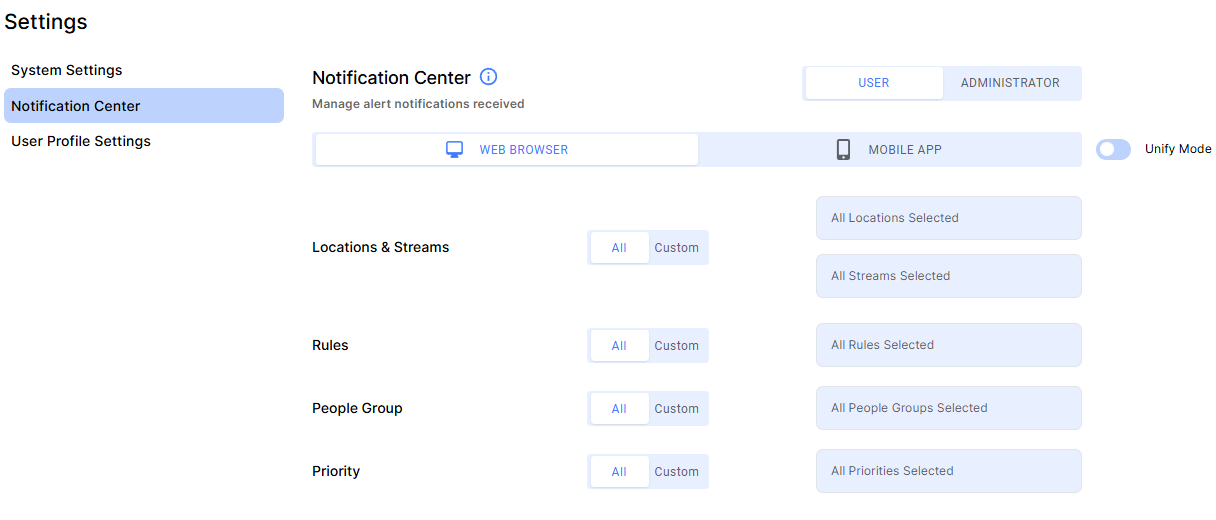
At the top of the settings page, you will find two primary tabs: Web and Mobile App.
Separate Profiles: Changes made in the "Web" tab only affect browser notifications. Changes in the "Mobile App" tab only affect push notifications.
Unify Mode: Toggle this to instantly sync settings across both platforms, keeping your preferences identical.
Filtering Categories
You can filter Notifications across four specific dimensions.
Category | Description |
Locations & Streams | Select specific sites (e.g., "Headquarters") or individual cameras. |
Rules | Choose specific triggers (e.g., "Thief Detected"). Use the search bar for quick access. |
Priority Level | Filter by severity: High, Medium, or Low. |
People Groups | Filter based on recognized groups (e.g., "VIPs", "Employees"). |
The "All" vs. "Custom" Logic
For each category, you have two modes:
All (Default): You receive alerts for everything.
Benefit: If a new camera or rule is added to the system later, you automatically receive alerts for it.
Custom: You only receive alerts for what you manually select.
In Custom mode, the system behaves differently depending on whether you are filtering by location or by specific rules:
Locations & Streams: If you select a Location (e.g., "Warehouse"), you will automatically receive alerts for any new cameras added to that location in the future.
Streams, Rules & People Groups: You will only receive alerts for the specific items you manually checked. If a new alert type (e.g., "Fire Detected") or a new People Group is added to the system, you will not receive alerts for them until you manually update your list.
Administrator Options
Why this is useful: This provides centralized management to maintain a unified security posture. Instead of requiring every employee to manually configure their own notifications, Administrators can ensure that the right people are seeing the right notifications at the right time. This reduces the risk of missed critical incidents due to user error or misconfiguration.
This section is visible only to users with Administrator permissions.
Editing & Bulk Application
Admins can manage notification settings for other users by changing the top toggle to Administrator.
On Behalf of Users: Select a user from the list to view or edit their settings as if you were logged in as them.
✏️ Edit Pencil: If you see this icon next to a name, it indicates the user has already configured Custom settings.
Red Lock Icon: If this icon is shown in red, it means the user’s profile is currently Locked and they cannot make their own changes.
Bulk Application: You can apply a specific configuration to many users at once. Configure the settings on-screen, select Save, and choose your Target Users to overwrite their existing settings with the current configuration.
Locking Profiles
Admins can Lock a user profile to enforce company-wide security policies.
Effect: A locked user can view their settings but cannot change them. The interface will appear "Read-Only" (greyed out) for them.
Usage: Ideal for ensuring that Security Guards or Site Managers always receive High Priority alerts.
Administrative Safeguard: For security and continuity, Administrators cannot lock the profiles of other Administrators.
User Profile: Sound Notification & Session Settings
To access these settings, click the Bell Icon in the top-right corner of the application.
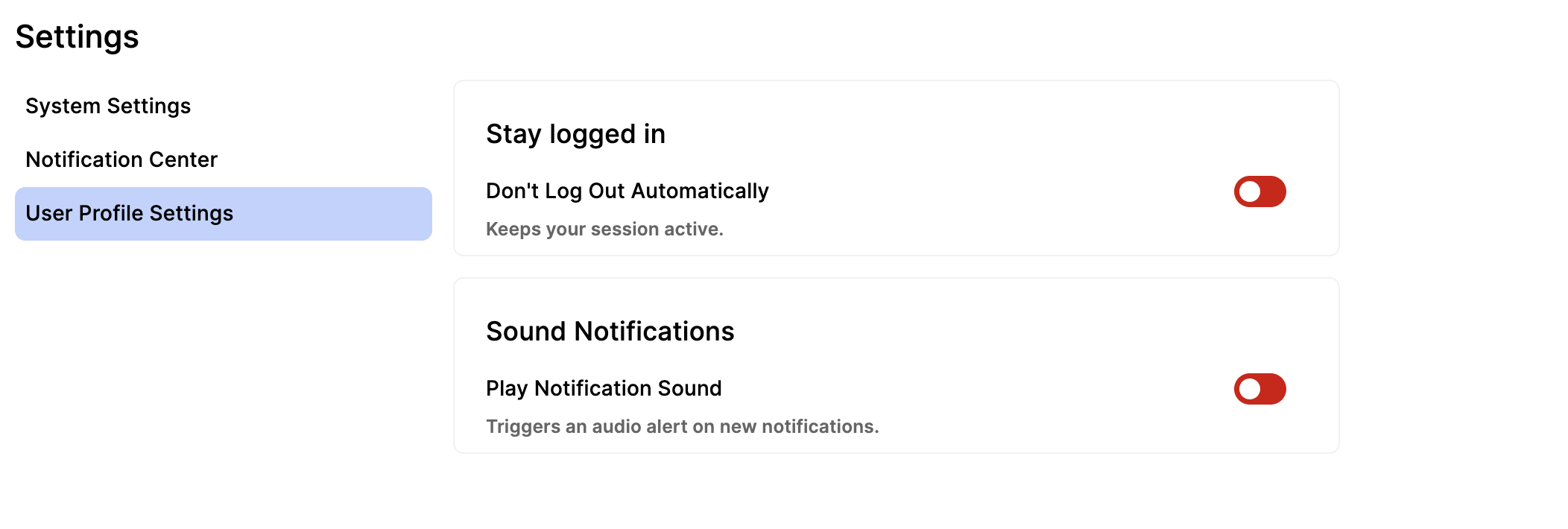
Persistent User Sessions
The "Don't Log Out Automatically" toggle controls inactivity timeouts.
OFF (Default): Standard security timeout. After one hour of inactivity, you have one minute to respond to a pop-up, or the session will expire.
ON: Disables the timeout. Your session remains active indefinitely—ideal for constant monitoring.
Instant Audio Alerts
The "Play Notification Sound" toggle enables audio for all new notifications.
OFF (Default): Visual notifications only.
ON: An audio alert plays for every notification, even if the browser is minimized.

Your Settings Are Saved
Both the "Play Notification Sound" and "Don't Log Out Automatically" settings are saved directly to your user profile. Your preferences will be remembered and automatically applied every time you log in, from any browser or device.