

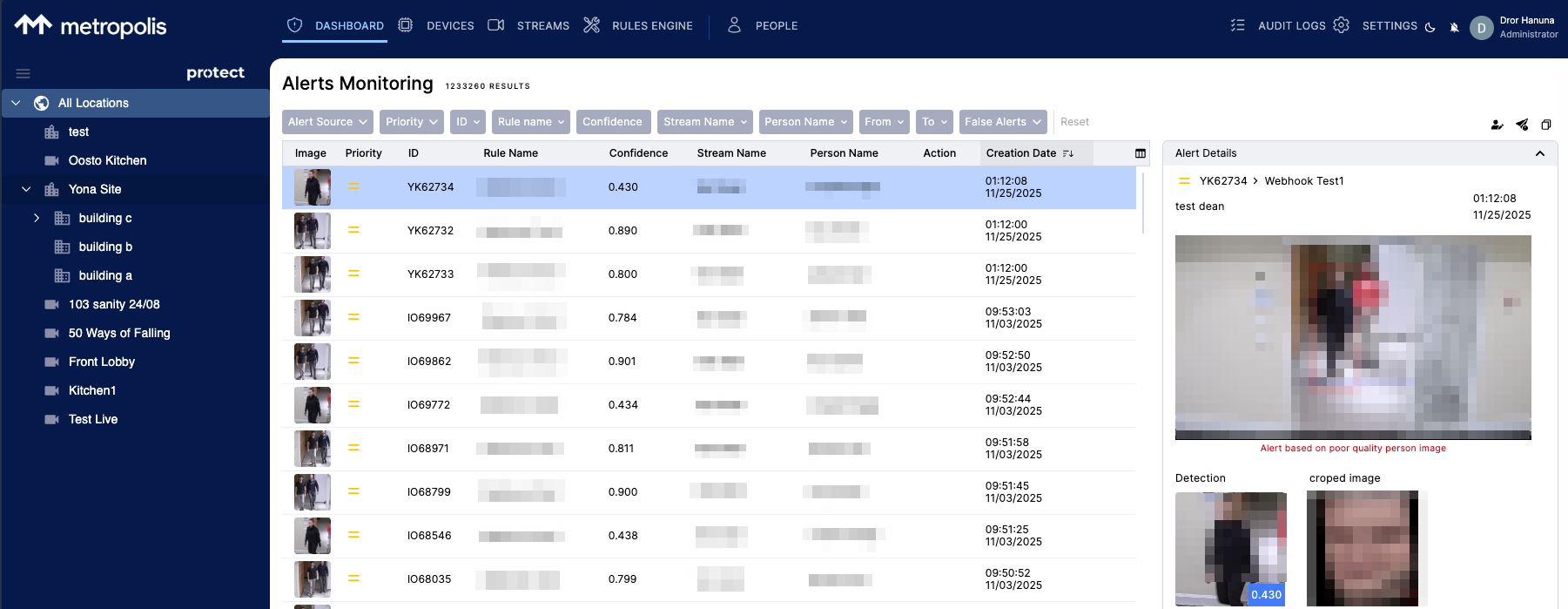
The System Hierarchy Tree replaces flat asset lists with a structured, visual view of your organization. By organizing Devices and Streams into specific locations (e.g., Region > Building > Floor), you can filter data, apply rules to specific locations, and manage user access more effectively.
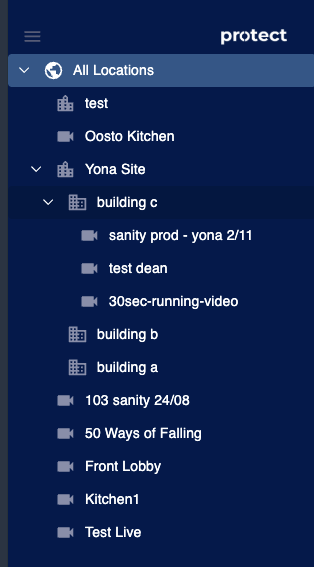
Key Concepts
Physical Location: Where the hardware (Device) physically exists (e.g., Server Room).
Logical Location: Where the camera stream is logically related (e.g., Main Entrance). You can separate these in the tree to reflect reality.
Default Location ('All Locations'):
Every Device or Stream must belong to a location.
Any asset not assigned to a specific folder is automatically placed under the root level 'All Locations'.
Navigating & Viewing the Tree
The tree is located on the side panel of the system page (Alert Dashboard, Streams, Devices, Rules)
Expand/Collapse: Click the arrow icons (
>) to drill down from high-level regions to a specific location.Selection & Filtering: Click a specific location to filter all data tables on the current page (Devices, Streams, Alerts, Rules). This shows items in that location and all its sub-locations.
View Options
You can change how the tree displays information using the "View" dropdown above the tree:
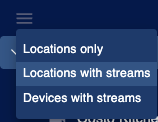
Role-Based Access: The views available to you depend on your user permissions:
Alert Monitor: Can access Location Only.
Admin & Operator: Can access All Views (Simple, Streams, and Devices).
View Types:
Simple View - Shows Locations only. Best for high-level navigation.
Streams View – Shows locations and the Streams assigned to them (by logical location).
Devices View – Shows locations, the Devices at each location, and their associated streams.
The "Different Location" Indicator
To keep you aware of these split configurations, the system adds a visual marker to the tree.

When a stream is in a different location than its parent device, an indication icon appears next to the stream name. Hovering over this icon provides context via a tooltip.
Managing Locations
Editing the Hierarchy
To make changes to the structure - such as adding, renaming, or deleting items—you must first enter Edit Tree mode. This prevents accidental changes during daily monitoring.

⚠️ Permissions Note: Only users with Administrator privileges can enter "Edit Tree" mode. Operators and Alert Monitors are restricted to viewing mode only.
Creating & Customizing Locations
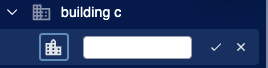
You can add new locations and assign specific icons to them (e.g., a Building icon or Floor icon) to provide better visual context.
Add New: Select a parent folder (e.g., "Building A") and click the + Add Location icon.
Edit Existing: Hover over a location and click the Edit (Pencil) icon, you can edit the location name or edit the location icon.
Drag & Drop Organization
You can reorganize your system by simply dragging items within the tree structure.
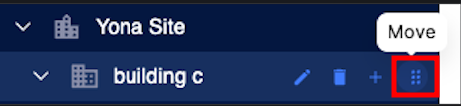
Moving a Location: Updates the tree structure.
Moving a Device: Updates its Physical Location. The device and all its attached streams move to the new folder.
Moving a Stream: Updates its Logical Location. Only that specific stream moves. It is now considered "logically separated" from its physical device.
"Return to Device" (Resetting Locations)
If you want to move a stream back to its physical device location:
Enter Edit Tree mode.
Locate the stream with the indicator icon.
Click the Return to Device button next to the stream name.
Result: The stream moves back to the device's location, and the indicator icon disappears.

Deleting Locations
When deleting a location, the system will not delete any Devices or Streams. They are simply moved up in the hierarchy.
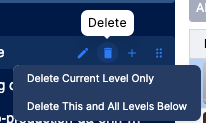
When you click the Delete icon, you will be presented with two options:
Option 1: Delete Specific Location Only
Action: Deletes only the selected location.
Result: Any sub-locations, devices, and streams are moved up to the parent level.
Option 2: Delete Location and All Sub-locations
Action: Deletes the folder and the entire hierarchy branch below it.
Result: The structure is removed, but all Devices and Streams are preserved and moved to the parent level (or 'All Locations').