

The system allows a single or multiple images of a person to be uploaded to an individual. These images can then be associated with a person's name and one or more "Person groups", which allow rules to be set according to the people in the group.
Organize and Find People
The people screen view can be changed from a gallery view to a table view

The People screen lets users manage persons by
Searching for a person by name
Filtering by one or more Person Group Names (This dialogue enables searching, selecting multiple names and clearing the selections)
Filter by image quality (Good Quality, Mixed Quality, Poor Quality)
Ordering by (Name, Person Groups, Creation and Update Date)
Showing an indicator of reference image quality

Add, View, Edit and Delete a Person
Add a new Person
Click Add Person button
Upload a photo of the person. This photo will be used as a reference image for the system to match a person by
Image Quality & Indicators
To ensure the best quality match, it is critical to upload high-quality reference images for every person. The system automatically analyzes every image you upload to determine if it meets the necessary standards.
You can instantly check the overall quality of a person's profile by looking at the Quality Status Dot displayed next to their image:
Green Dot - (Good Quality): All images uploaded for this person are of high quality. No action is needed.
Half Green / Half Red - (Mixed Quality) : The profile contains at least one poor-quality image, even if others are good. We recommend removing the poor images to improve accuracy.
Red Dot - (Poor Quality): All images uploaded for this person are of poor quality. You should replace these images immediately to ensure the system can recognize this person.
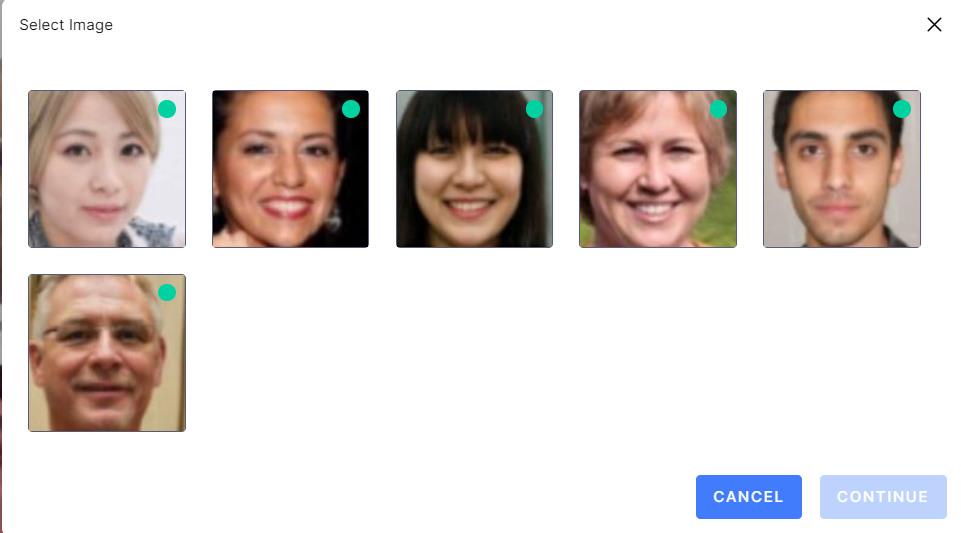
Multiple faces In an image
If the uploaded photo of the person includes multiple people, you will be provided with a grid of faces. You can select the image of the person you would like to add to the system. Only the selected image will be saved to the system. You will be shown the image quality on this screen.
3. After the image is uploaded, you will quickly know if the photo can be a reference image. If you see a green Pass icon, the image is good to use. If the photo shows a red Poor quality status, we suggest changing the image to a higher quality one to reduce your chances of receiving false alerts.
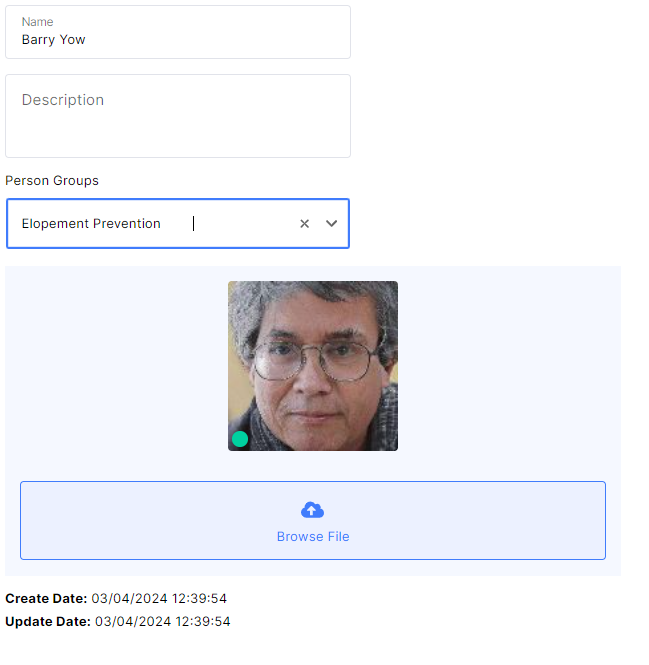
4. Add details about the person, including their name, description, and person group(s).
5. Click Create.
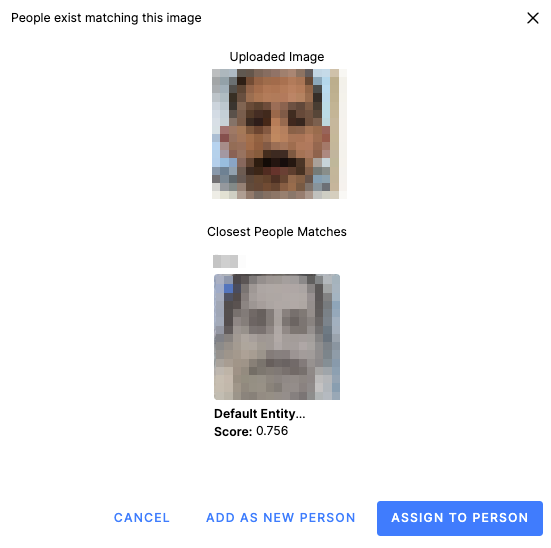
Duplicate Subjects
The system compares an uploaded image of a person with the existing list of people to check for possible duplicates. If the system finds a match, it will let you assign the new image to the matching person. You can also decide to create a new person with that image, if you wish.
Edit a Person
To edit a person you can select the edit icon
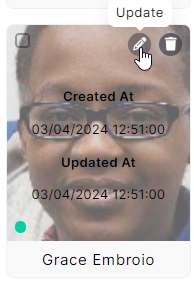
You can update and change the person's profile details, add more images or change the main/featured image (selecting the blue star).
1. From the People screen click on the edit logo for the desired person.
2. Here you can add or remove images and change the person's name, description, or group
3. Click Save.
Delete a Person
1. From the People screen click on the delete logo of the desired person.
A bulk delete of people is possible by selecting the check box in the top left corner and then a multi-action toolbar will appear.
2. You will be prompted to confirm that you are interested in deleting people(s). Press Delete.