

On the streams page, you can see all the streams that are connected to your Protect, Stream status, Live preview, and details.
Location Hierarchy & Navigation
The Streams page features a Location Hierarchy Tree on the side panel, allowing you to organize your camera streams based on their "Logical Location" (what they are viewing) rather than just their physical hardware location.
Filtering by Location: Clicking on a specific tree asset (e.g., "Main Lobby") in the tree acts as a filter. The Streams table will update to show only the streams assigned to that location.
Logical vs. Physical: By default, a stream inherits its location from its parent Jetson device. However, you can separate them.
Example: A device is physically in the Server Room, but the camera stream monitors the Front Entrance. You can place the stream in the "Front Entrance" folder in the tree.
Organizing Streams: To change a stream's logical location, simply drag and drop the stream within the tree structure to a new location in edit mode.
Note: If a stream is moved away from its device, a "Different Location" icon will appear next to it. You can reset this at any time using the "Return to Device" button in the edit tree mode.
Stream Table Information
On the stream table you can see stream details -
Preview Image
Name
Stream URL
Device (Jetson)
Connection health - can be Connected, Disconnected, Connecting, and Disconnecting
When the device is Connecting or Disconnected you can see the error message on the small 'i' icon
Stream state toggle - On or Off with the option to change it
Created date
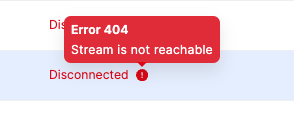
You can filter the streams table by Stream Name, Device Name, Connection health and state.

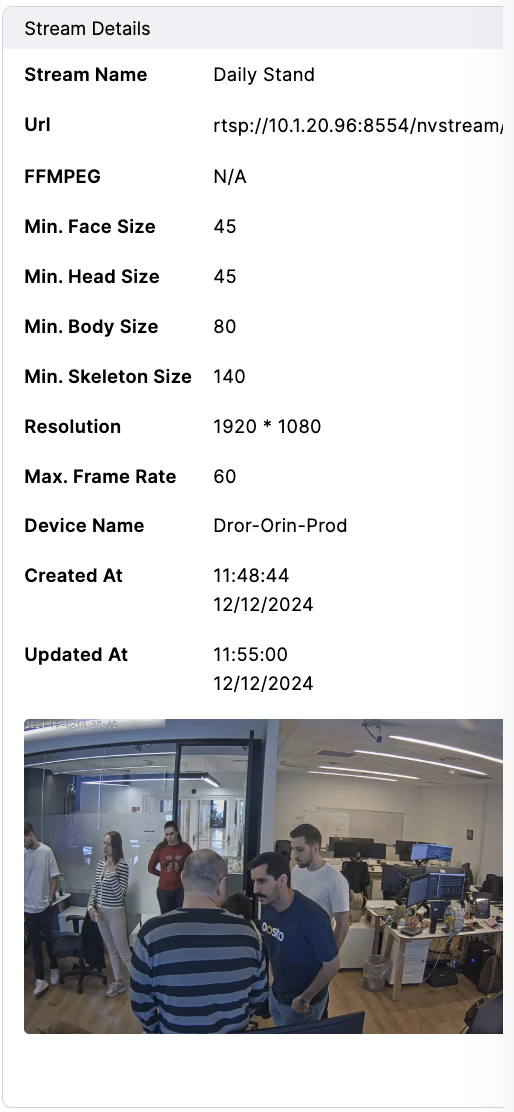
Stream Details
By selecting a stream its information will be displayed on the right panel you can see all the relevant information about it
Stream Name
URL
FFMPEG
Min. Face Size
Min. Head Size
Min. Body Size
Min. Skeleton Size
Resolution
Max. Frame Rate
Device Name
Created Date
Updated Date
Preview Image
Streams Actions
On every stream line you can see 2 action icons-
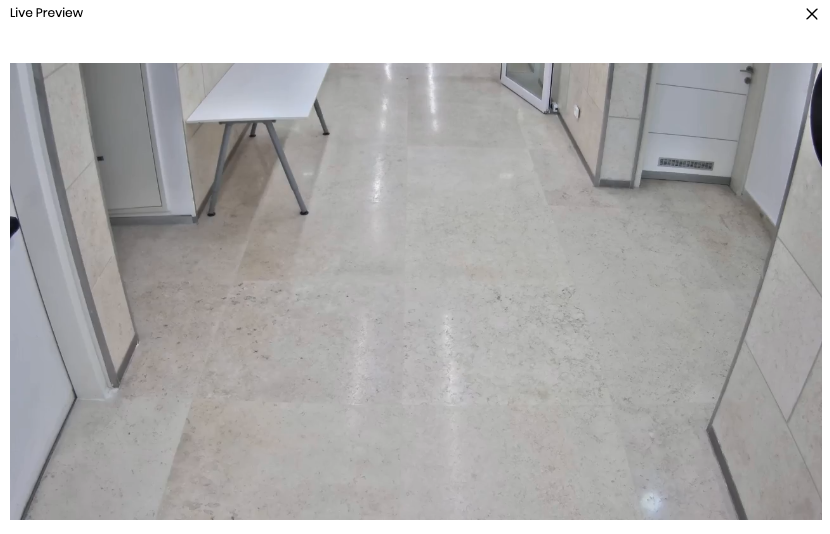
Live preview - to open live preview of the camera
Delete - delete the stream from the system
Bulk Stream Management
You can take action on multiple streams at once directly from the streams grid.
To select streams, use the checkboxes on each stream row. Once one or more streams are selected, the bulk action bar appears.
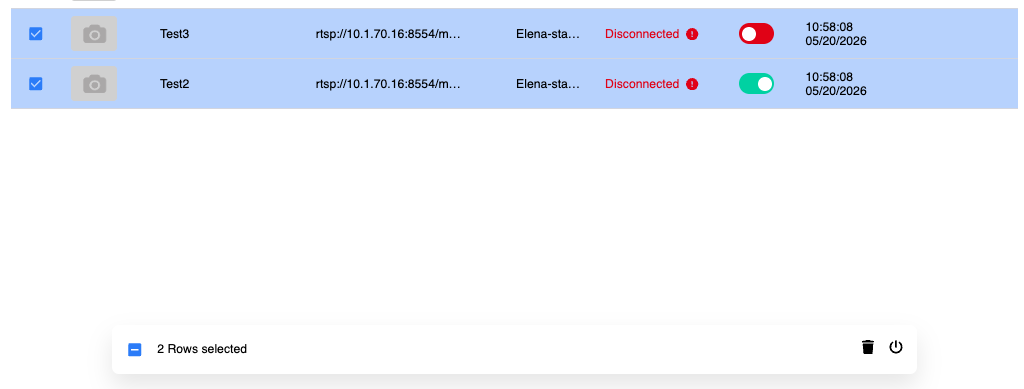
Bulk Enable / Disable: Toggle multiple streams on or off in a single action. Streams that already match the selected state are left unchanged. If a running stream is stopped, its processing slot is released immediately.
Bulk Delete: Remove multiple streams in a single action. A confirmation dialog displays the exact number of streams selected before any deletion is triggered, preventing accidental removals. Deleted streams are removed from the Streams page instantly and device counters are updated in real time.
Error Handling: If a status change cannot be completed for any stream, a system notification is shown so no update goes unnoticed.