

This update introduces day and time-based scheduling for the rules engine, bulk stream management from the grid, and improved alert response with live stream preview while footage loads.
Key Highlight
Introducing Time-Based Rule Scheduling
You now have full control over when your rules run. The rules engine has been upgraded with a time scheduling layer, allowing you to define exactly which days and hours each rule is active.
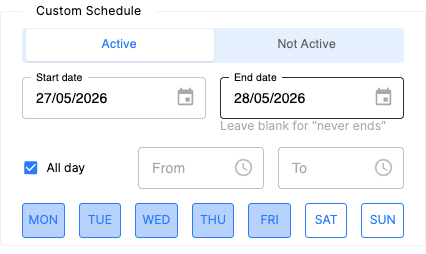
Day-Based Execution: Select any combination of days for a rule to run. By default, all days are pre-selected for full weekly coverage. Toggle individual days on or off to match your operational hours.
All Day or Custom Time Range: Rules run 24/7 by default. When a custom schedule is activated, all days of the week are selected by default. Uncheck "All Day" to define a specific start and end time, with 30-minute interval options or free-text input for precision.
Start Date Control: Set a future start date for any scheduled rule, giving you forward-planning capability across your security operations.
Midnight Wrap-Around Detection: When a rule spans midnight (e.g., 11:00 PM – 4:00 AM), the system automatically detects the overlap and displays a plain-language confirmation - for example, "Starts Monday night and ends Tuesday morning" - so there is no ambiguity in how overnight rules behave.
Execution Status in the Rules Table: The rules table now includes a schedule status indicator on each rule so you always know what is running and what is waiting.
Status | Condition | Icon | Hover Behavior |
Running Now | Rule is enabled, no schedule configured, runs continuously | | None |
Running Now (Scheduled) | Rule is enabled and currently active within its scheduled time window |
| "Currently Running" |
Scheduled | Rule is enabled but outside its active window, or schedule has expired |
| "Next execution at [TIME]" or "No upcoming occurrences" / "Expired Rule" |
Disabled | Rule is off, regardless of schedule | | None |


Backward Compatible: Existing rules are unaffected. The schedule feature is off by default and must be explicitly enabled, ensuring no disruption to live configurations.
Bulk Stream Management
Managing large stream deployments just got faster. You can now take action on multiple streams at once directly from the streams grid.
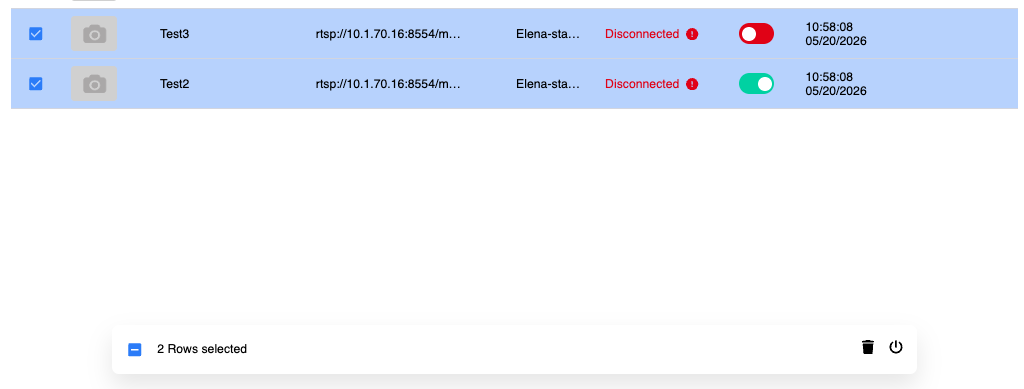
Bulk Enable / Disable: Select one or more streams and toggle them on or off in a single action. Choose from the bulk action bar - streams already matching the selected state are left unchanged. If a running stream is stopped, its processing slot is released immediately.
Bulk Delete: Select one or more streams and remove them in a single action. A confirmation dialog displays the exact number of streams selected before any deletion is triggered, preventing accidental removals. Deleted streams are removed from the Streams page instantly, with device counters updated in real time.
Error Handling: If a status change cannot be completed for any reason, a system notification is shown so no update goes unnoticed.
Platform Improvements
Alert Video in Details Panel: Selecting an alert now loads the clip directly in the right-side details panel. While the video is still generating, a live stream preview is available so you can act immediately without waiting for the clip to be ready.
Faster Alerts Page Loading: The alert grid and side panel now load simultaneously, reducing the time before you can begin reviewing events.
Time Zone Display: Each device now shows its local time zone, displayed as City/Region with UTC offset - for example, America/New_York (GMT-5) or Asia/Jerusalem (GMT+2). Users can toggle between automatic and manual time zone selection per device.
See full changelog Here